Back, Elastic and Bounce curves, Smart morph and a smarter AI
The Animation page gets Back, Elastic and Bounce curves, speed editing, Stagger and Smart morph. Your AI app can now morph shapes, stagger layers and edit shapes and markers. Subtitles run in the background, and Beat takes your own frequency range.
By Filip Miernik
v0.19.0
4 min read
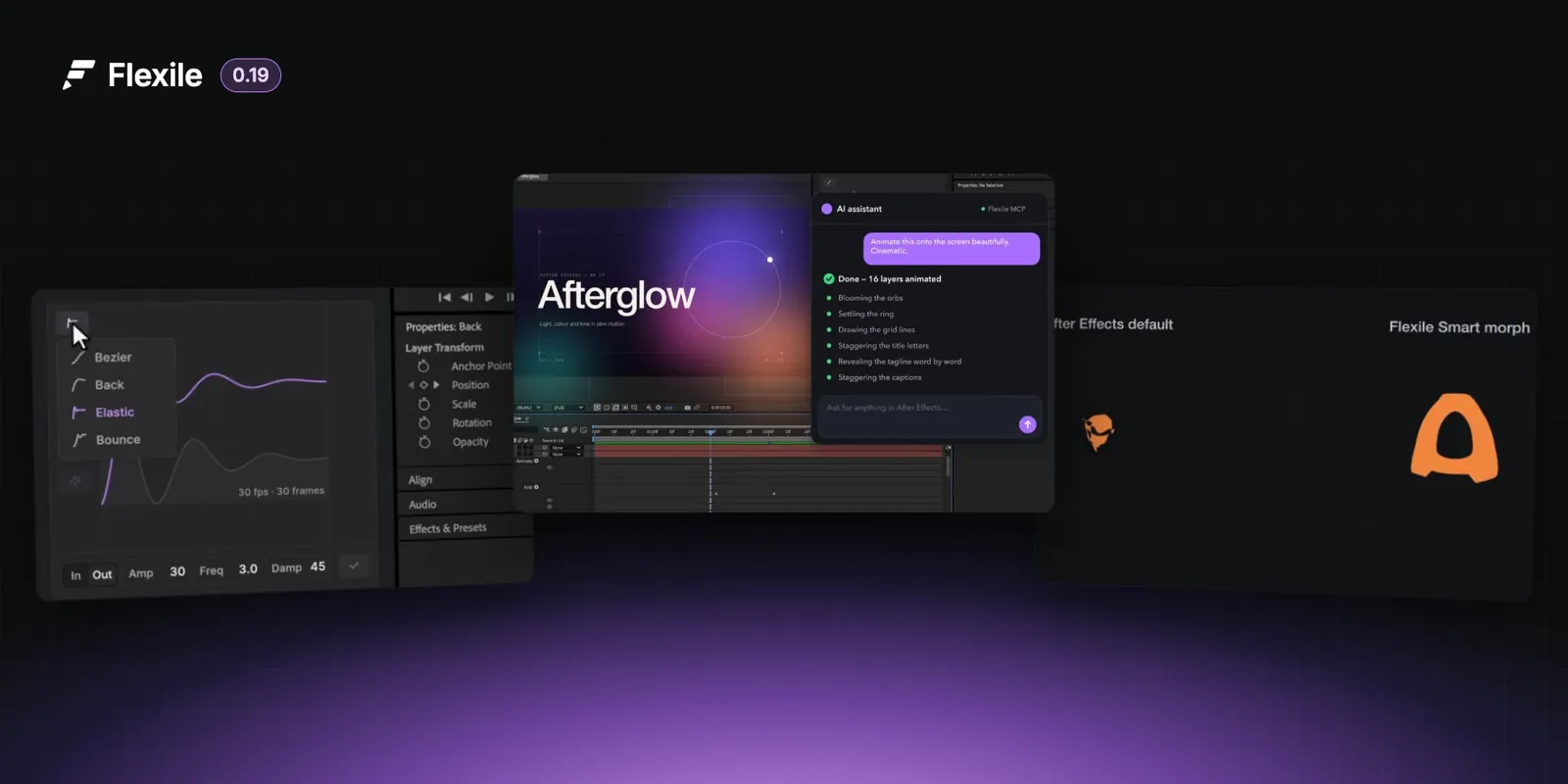
In a nutshell
Back, Elastic and Bounce curves
Select keyframes, open the Curve type menu at the top left of the editor and pick Back, Elastic or Bounce. Drag the dot to shape it, then Apply. Flexile adds the keyframes.
Morph shapes with Smart morph
Turn on Smart morph, select two or more shape layers in order and Apply: the first morphs cleanly through the others, colours included. It also untwists path keyframes you already have.
Stagger and edit by speed
Stagger spaces selected layers or keyframes along the curve: drag Step, then Apply. Edit speed (the gauge) lets you shape an ease by dragging its speed peak.
Your AI app does more
Connected AI apps can now morph shapes, stagger layers, use the new curves, edit shape layers and markers, and copy text animations, in fewer steps. In After Effects 2025, each request is one Undo.
Subtitles in the background, Beat your way
Start a transcription and keep working: a note says when subtitles are ready. Edit their times or add your own. Beat takes a custom Low/High range.
And a round of fixes
“Any problem with login?” opens a sign-in help page, the Apply tooltip no longer sticks, preset groups have readable names, and Flexile keeps working when another script breaks After Effects’ JSON.
Flexile 0.19.0 is out. The panel installs it on its own after a short countdown and asks you to restart After Effects; after the restart it shows what changed in a few steps. This page has the full notes.
Back, Elastic and Bounce curves
The Animation page’s curve editor now does more than eases. Select two or more keyframes, open the Curve type menu at the top of the editor’s left column and pick Back, Elastic or Bounce. Choose Out for an effect at the end of the move, or In for one at the start, then press Apply. More on bounce and elastic easing in After Effects.
- Shape the curve by dragging its dot: up and down for strength, sideways for timing. Or scrub the fields under the editor: Overshoot, Amplitude, Frequency, Damping, Bounciness, Bounces.
- Flexile adds the keyframes the motion needs and colours them purple. Apply another type to replace them, or Bezier to remove them. One Undo reverts the whole Apply.
- The preview follows your comp’s frame rate and the keyframes you selected, so what you see is what Apply writes.
- New presets for each type sit in the grid under the editor.
- Curves that overshoot on Position ask once: add a keyframe at the overshoot to keep your motion path, or split X and Y.
- Apply is much faster when you ease many layers at once.
Edit by speed
Turn on Edit speed (the gauge) to shape an ease by how fast it moves: drag the peak, or a keyframe’s handle. The value curve follows as you drag, and Apply writes the same native After Effects ease. It takes the place of the view-only speed graph.
Stagger along a curve
Stagger spaces selected layers, or selected keyframes on several layers, in time. Drag Step, pick the order (Selection, Reverse or Random) and Apply. The spacing follows the curve in the editor: a straight line gives even steps, an ease-in starts tight and opens up. Step goes back to 0 afterwards, so applying again adds on. More on staggering layers along a curve.
Smart morph
Turn on Smart morph and shapes morph cleanly, without the twisting and folding After Effects’ own path morph can produce. More on shape morph in After Effects.
- Morph one shape into others: select two or more shape layers in the order you want, then Apply. The first layer morphs through the others, with their fill and stroke colours, starting at the playhead. The other layers are hidden, never deleted.
- Clean up existing morphs: select path keyframes on a shape or mask and Apply.
- Back, Elastic and Bounce work on shapes too, so a square can spring into a star. If an overshoot would fold the outline over itself, Flexile tones it down and says so.
- Very detailed paths ask first, so After Effects never stops responding without warning.
Your AI app does more in After Effects
If you connect an AI app to Flexile on the AI page, it can now:
- ease with Back, Elastic and Bounce, on selected keyframes, whole layers or shapes;
- morph shapes and stagger layers, with the same results as the panel;
- build and edit shape layers: rounded corners, strokes, dashes, trim paths;
- add, list and remove markers;
- copy a text animation to other text layers;
- run your Cloud Tools with settings.
It also finishes jobs in fewer steps and with fewer errors, and in After Effects 2025 each request is one Undo. When a step doesn’t work, it says so instead of reporting success, and it tells you when it can’t take a screenshot because your Mac’s display is asleep. More on AI for After Effects.
Audio
- Subtitles run in the background. Start a transcription, keep working on other pages, and a note tells you when the subtitles are ready. Keep the Flexile panel open while it runs.
- Edit subtitle times and add your own. Type a start or end, step it a frame with the arrow keys, or add a subtitle with + or Add subtitle. Exports include your edits.
- Beat takes your own range. Type Low and High under the spectrum, or drag the band. You can also key just part of the clip from the Keyframes preview.
Free tools and presets, one click away
The Tools and Text pages show a short preview of the free expressions and scripts and text presets on flexile.io, once, with a link at the end of each list.
Fixes
- Sign-in help links (“Any problem with login?”, “Need help?”) open a sign-in help page on flexile.io instead of an error page.
- The Apply button’s tooltip no longer pops back up and stays on screen when you return to the panel from After Effects.
- Preset groups on the Animation page have readable names: Ease in-out, Ease in, Ease out, Back, Elastic, Bounce.
- Flexile keeps working when another script or extension breaks After Effects’ shared JSON.
- Colour keyframes ease at the right speed.
- The Flicker tool uses its Amplitude slider and stays between Min and Max.
- The Tools page no longer scrolls sideways, and long tool code scrolls inside its editor.
- The Text Options popup stays inside the panel at every interface size.
- Every field in the curve editor shows its label, and its questions stay above the navigation bar at large interface sizes.