Bounce and overshoot expressions in After Effects (and one-click versions)
Two commented expressions to paste: an overshoot that springs past each keyframe and a bounce that rebounds like a ball. Plus slider controls, fixes and Flexile’s one-click rigs.
By Filip Miernik
Tutorial
7 min read
To make a layer bounce or overshoot in After Effects, keyframe the move, then paste an expression on the property that reads how fast it arrived at its last keyframe and adds a fading motion after it. Use overshoot (also called inertial bounce) when the layer should swing past the target and settle like a spring. Use bounce when it should hit the target and rebound like a ball.
Both expressions below are our own, commented line by line, and work on any keyframed property that holds numbers, such as Position, Scale, Rotation or Opacity. At the end you’ll find Flexile’s one-click Overshoot and Bounce rigs, which set the same thing up with slider controls.
In this guide
- How to add a bounce or overshoot expression
- Overshoot expression (inertial bounce)
- Bounce expression
- What is the difference between bounce and overshoot?
- Control the expression with sliders
- Why is my bounce expression not working?
- One-click overshoot and bounce in Flexile
How to add a bounce or overshoot expression
- Animate the property with at least two keyframes, for example Position sliding in and stopping.
- Alt-click (Windows) or Option-click (macOS) the stopwatch next to the property name to open its expression field.
- Replace the default text with one of the expressions below.
- Preview the comp, then change the numbers at the top of the expression until the motion feels right.
Overshoot expression (inertial bounce)
After the last keyframe, the value keeps going the way it was moving, swings back past the target a few times and settles in about a second with these settings.
// Overshoot (inertial bounce) for After Effects.
// The property swings past each keyframe, wobbles and settles.
// Paste it on a keyframed property: Position, Scale, Rotation, Opacity...

var springiness = 1; // 1 = the swing starts at the arrival speed, 0.5 = half as far
var wobbles = 2.5;   // swings per second
var settle = 6;      // damping: higher numbers settle sooner

// Last keyframe at or before the current time (0 means none yet).
var k = numKeys > 0 ? nearestKey(time).index : 0;
if (k > 0 && key(k).time > time) k -= 1;

var result = value;
if (k > 0) {
  var elapsed = time - key(k).time; // seconds since that keyframe
  // How fast the property arrived: its velocity just before the keyframe.
  var arrival = velocityAtTime(key(k).time - thisComp.frameDuration / 4);
  var w = Math.max(wobbles, 0.1) * 2 * Math.PI; // swings per second, in radians
  var fade = Math.exp(-settle * elapsed);       // 1 at the keyframe, then toward 0
  // A sine wave that fades out. Dividing by w makes the swing leave the
  // keyframe at the arrival speed, so there is no kink at the keyframe.
  result = value + arrival * springiness * Math.sin(w * elapsed) * fade / w;
}
result;springiness: how far it swings. At 1 the swing leaves the keyframe at the speed the layer arrived with, so the motion has no kink. 0.5 halves it.wobbles: swings per second. Higher numbers give tighter, smaller swings.settle: how fast the swing dies out. Higher numbers settle sooner.
The swing scales with speed, so a fast move overshoots more than a slow one. A Position move that arrives at 1,000 px per second overshoots by about 37 px with the settings above.
Bounce expression
Use this one for a ball-like hit. The value stops at the keyframe, rebounds back the way it came, and each rebound is lower and quicker than the last. It never passes the target.
// Bounce for After Effects.
// The property hits the keyframe value like a ball hitting the floor,
// then rebounds, lower and quicker each time. It never passes the target.

var elasticity = 0.6; // share of speed kept after each impact (0.3 = dead, 0.8 = rubbery)
var gravity = 3000;   // pull back to the keyframe, in the property's units per second squared
var maxBounces = 4;   // rebounds before it rests

// Last keyframe at or before the current time (0 means none yet).
var k = numKeys > 0 ? nearestKey(time).index : 0;
if (k > 0 && key(k).time > time) k -= 1;

var result = value;
if (k > 0) {
  var elapsed = time - key(k).time;
  var v = velocityAtTime(key(k).time - thisComp.frameDuration / 4);
  var isArray = v instanceof Array;
  var arrivalSpeed = isArray ? length(v) : Math.abs(v);
  var e = Math.min(Math.max(elasticity, 0.01), 0.99);
  var g = Math.max(gravity, 1);
  var bounces = Math.max(Math.round(maxBounces), 0); // whole rebounds only

  // Rebound n (counting from 0) takes off at s0 * e^n and lasts d0 * e^n,
  // so the take-off times form a geometric series: no loop needed.
  var s0 = arrivalSpeed * e; // take-off speed of the first rebound
  var d0 = 2 * s0 / g;       // how long the first rebound lasts, in seconds
  var total = d0 * (1 - Math.pow(e, bounces)) / (1 - e);

  if (arrivalSpeed > 0 && elapsed < total) {
    // Which rebound is playing now, and when it took off.
    var n = Math.floor(Math.log(1 - elapsed * (1 - e) / d0) / Math.log(e));
    var start = d0 * (1 - Math.pow(e, n)) / (1 - e);
    var s = s0 * Math.pow(e, n);
    var dt = elapsed - start;
    var lift = s * dt - g * dt * dt / 2; // up, then back down to 0
    // Rebound straight back the way it came.
    var away = isArray ? normalize(v) * -1 : (v > 0 ? -1 : 1);
    result = value + away * lift;
  }
}
result;elasticity: the share of speed kept after each impact. 0.3 lands almost dead, 0.8 is rubbery.gravity: how hard the value is pulled back, in the property’s own units per second squared (pixels for Position). Lower gravity gives higher, slower bounces.maxBounces: how many rebounds play before it rests.
With the same 1,000 px per second move, the first rebound rises 60 px and the layer rests in under a second. Instead of looping through the bounces on every frame, the expression solves the series of bounce times directly, so it does the same small amount of work however many bounces you allow.
What is the difference between bounce and overshoot?
Overshoot is a spring. It passes the target and swings back and forth at a steady rate while the swings shrink: a sine wave multiplied by a fading exponential. Bounce is a ball hitting the floor. It stops dead at the target and rebounds, and every rebound is both lower and shorter than the last: a chain of shrinking parabolas. The rhythm differs, so one expression can’t fake the other.
Dan Ebberts explains this split in Realistic Bounce and Overshoot on motionscript.com, the classic reference for these expressions. His article also has an overshoot calculated without keyframes and versions for text animators. Adobe’s Expression examples page on HelpX has an Overshoot example for Position and notes that it is “commonly known as inertial bounce”. Read both for the original versions of the technique.
Control the expression with sliders
Link the numbers at the top to Slider Control effects and you can scrub them, or keyframe them to change the swing over time, as Adobe’s wiggle examples do.
- Add a Slider Control effect to the layer and name it Springiness. Add two more named Wobbles and Settle.
- Replace the three settings lines of the overshoot expression with the lines below.
- Set the sliders to 1, 2.5 and 6 to start from the settings above, then adjust.
var springiness = effect("Springiness")("Slider");
var wobbles = effect("Wobbles")("Slider");
var settle = effect("Settle")("Slider");
The same works for the bounce expression: name the sliders Elasticity, Gravity and Max Bounces, link elasticity, gravity and maxBounces to them, and start them at 0.6, 3000 and 4. The expression rounds Max Bounces to a whole number, so scrubbing that slider never cuts a rebound short.
Why is my bounce expression not working?
- Nothing happens. The expression needs speed going into a keyframe, so the property needs at least two keyframes with different values. Check the last one too: Adobe’s Easy Ease gives each keyframe a speed of 0, so an eased keyframe leaves the expression nothing to work with. Keep the incoming side linear. Our guide to easy ease shows what it does to speed.
- It snaps when the next move starts. The swing or bounce stops at the next keyframe. Leave more time between moves, raise
settleor lowermaxBounces. - The bounce is huge or invisible. Gravity uses the property’s own units, so a value that suits Position in pixels will be off for Rotation or Opacity. Lower it for bigger, slower bounces and raise it for smaller, faster ones.
One-click overshoot and bounce in Flexile
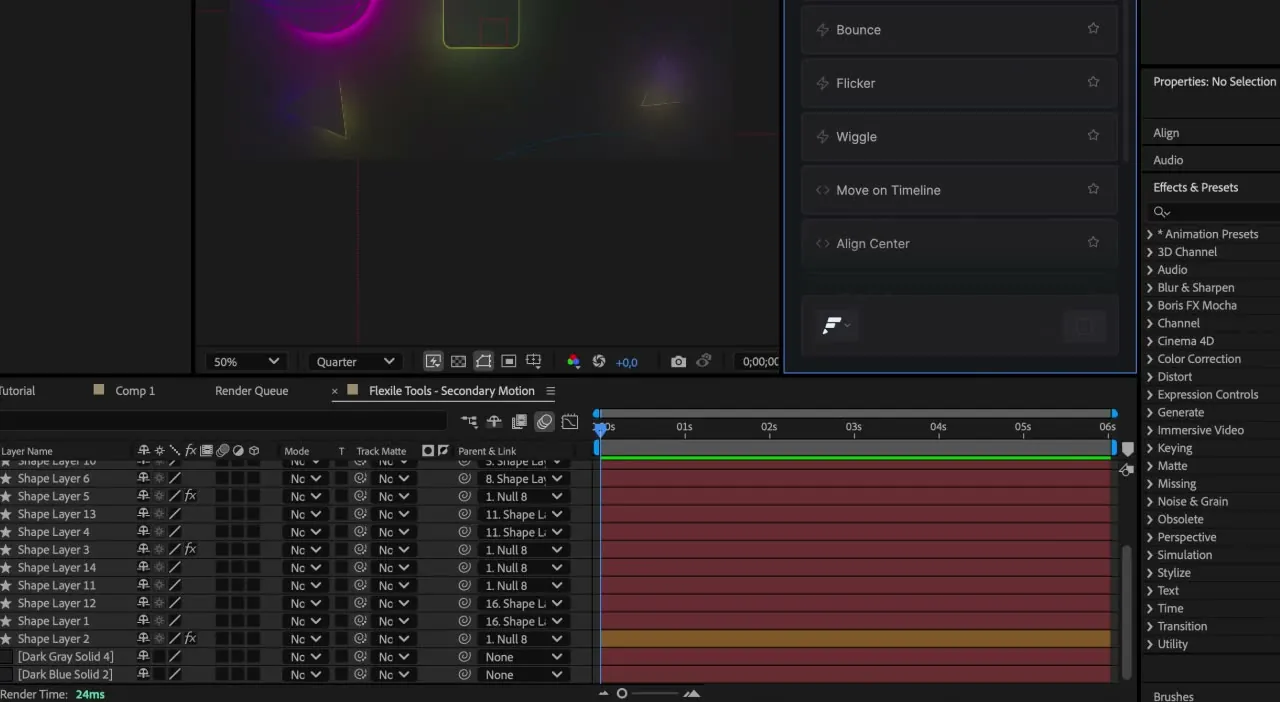
Flexile is our After Effects extension. Its Tools page keeps small jobs one click away, including Overshoot and Bounce rigs. Each rig adds a slider effect and writes an expression on the property you selected.
Run the Overshoot or Bounce rig
- In After Effects, open Window > Extensions > Flexile for AE and go to the Tools page.
- Select one layer and its keyframed property, for example Position. The rigs work on one layer at a time.
- Run Overshoot or Bounce.
- Adjust the sliders on the new effect, named after the property, for example Flexile Position.
Overshoot’s first three sliders set amplitude, frequency and decay. Bounce’s set elasticity, gravity and the number of bounces. Both work right away with default settings. The same page also has looping Wiggle and Flicker rigs.
Save your own expression as a tool
Prefer the expressions in this post? On the Tools page, add a new Expression tool, paste the code, test it and save it. A saved tool holds up to 1,000 characters, so before you save, delete every comment, including the ones at the end of lines, and the indentation. Both expressions then fit, as long as they keep their fixed numbers: with the slider lines from the section above, the bounce is still too long. Errors show with their line number while you test. The tool appears under Cloud Tools, synced to your Flexile account, and applies to whichever properties you select.
Ask your AI to do it
You can also ask your AI to add overshoot or bounce. Flexile’s MCP server lets an AI app such as Claude Desktop, ChatGPT desktop or Cursor apply the same rigs to Transform or Text properties with two or more keyframes. Each call is one undo step in After Effects.
Add a bounce to the Scale keyframes on the selected layer.
Prefer keyframes? Use a back curve
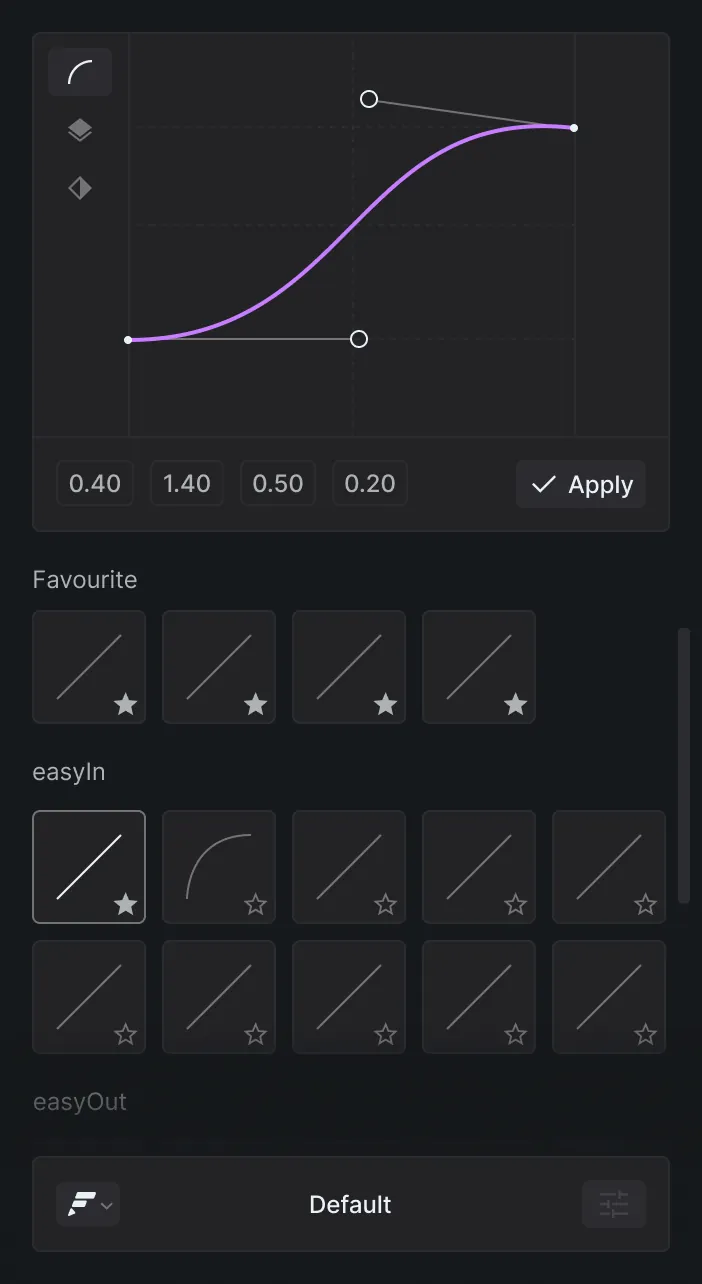
A bezier ease between two keyframes can pass the target only once, so it can’t wobble like the expressions above. When one clean overshoot is enough, bake it into the keyframes with a back curve. The Animation page of the Flexile easing plugin has 26 presets, including back curves that pull back or overshoot, and applies one curve to every selected keyframe at once. On Position it separates the dimensions first, because a linked spatial property can’t overshoot.
To bounce on the beat instead of on keyframes, Flexile’s Audio page writes a hit slider that jumps to 100 on each hit and falls back. Drive Scale with it for a bounce on every hit.
Try Flexile free during beta
Flexile supports After Effects 2025 or newer on macOS and Windows. It is free during beta, with every feature unlocked and no card. You need a Flexile account, and you sign in inside the panel.
Related posts
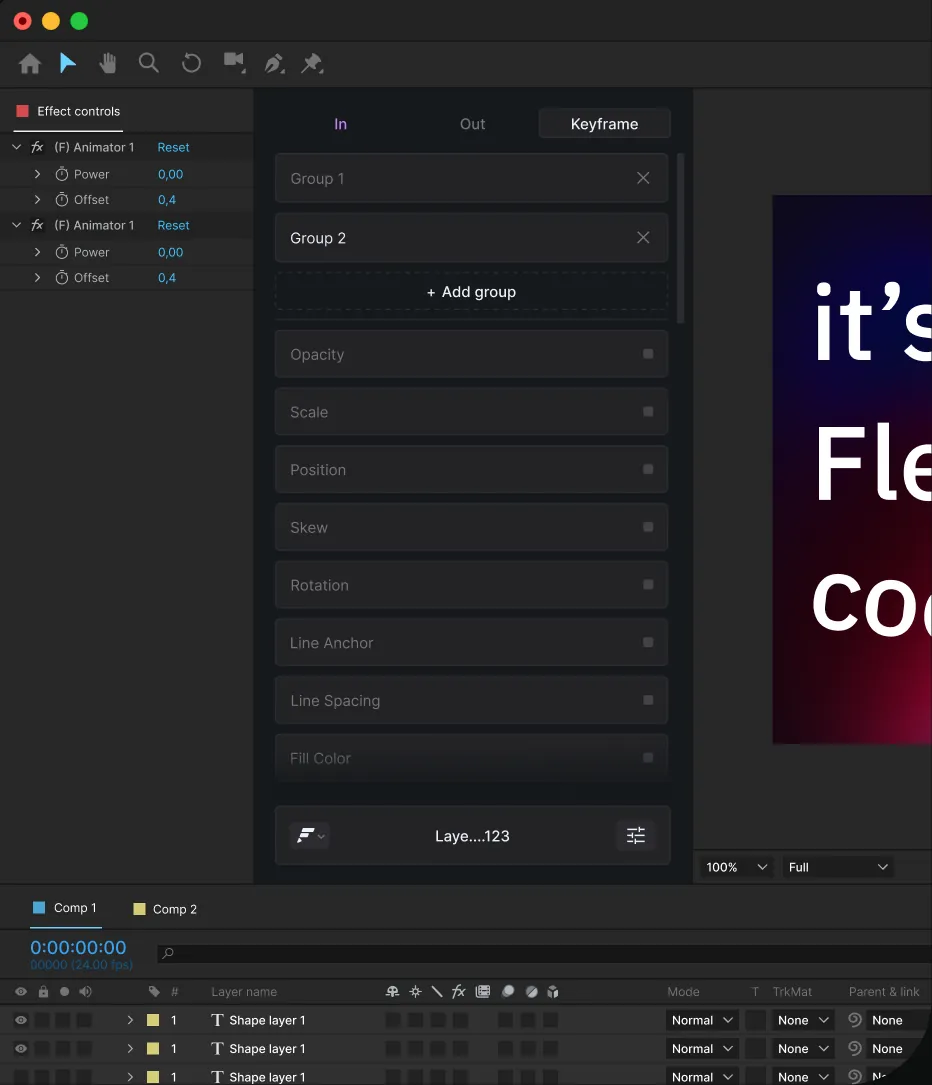
How to ease keyframes in After Effects, with or without the graph editor
Easy Ease and its three F9 shortcuts, exact speed and influence in Keyframe Velocity, the speed graph, and one curve applied to many keyframes at once.
Audio reactive animation in After Effects: pump, shake and flash
Three expressions that make any layer pump, shake or flash to the music, driven by beat keyframes, plus a no-plugin version built on linear().
ChatGPT for After Effects: expressions, scripts and MCP
Two ways to use ChatGPT with After Effects: test and run the expressions and scripts it writes in a Flexile tool, or connect the ChatGPT desktop app or Codex so it works in your comp.